
When it comes to optimizing e-commerce websites, the order tracking page often takes center stage in discussions.
However, there is another page with immense potential for driving repeat sales – the order history page. While often overlooked, a good order history page design has the opportunity to enhance customer experience, build trust, and ultimately, encourage more reorders.
In this blog, we will explore the importance of optimizing the order history page design and unlock its potential to boost customer loyalty and increase sales.
Recap: What is an order history page on Shopify?
In simple terms, an order history page is a record of all the orders a customer has placed on an e-commerce store. It is a dedicated page that contains a detailed list of previous transactions, including information such as order date, order number, total amount paid, and delivery status.
For customers, the order history page serves as a reference point for tracking past purchases, reviewing order details, and monitoring delivery status. It also enables them to conveniently reorder products they have purchased previously, helping save time and effort.
For businesses, the order history page is critical as it strengthens customer trust and loyalty. It provides a complete customer transaction history that can help businesses gain insights into purchasing behavior, making it easier for them to personalize offerings to better meet customer needs. Additionally, by encouraging reorders, businesses can increase customer lifetime value and generate increased revenue.
10 Order History Page Design Tips for Shopify stores
A well-designed order history page can greatly enhance user experience and contribute to increased repeat sales. Here are some design tips to consider when optimizing your order history page:
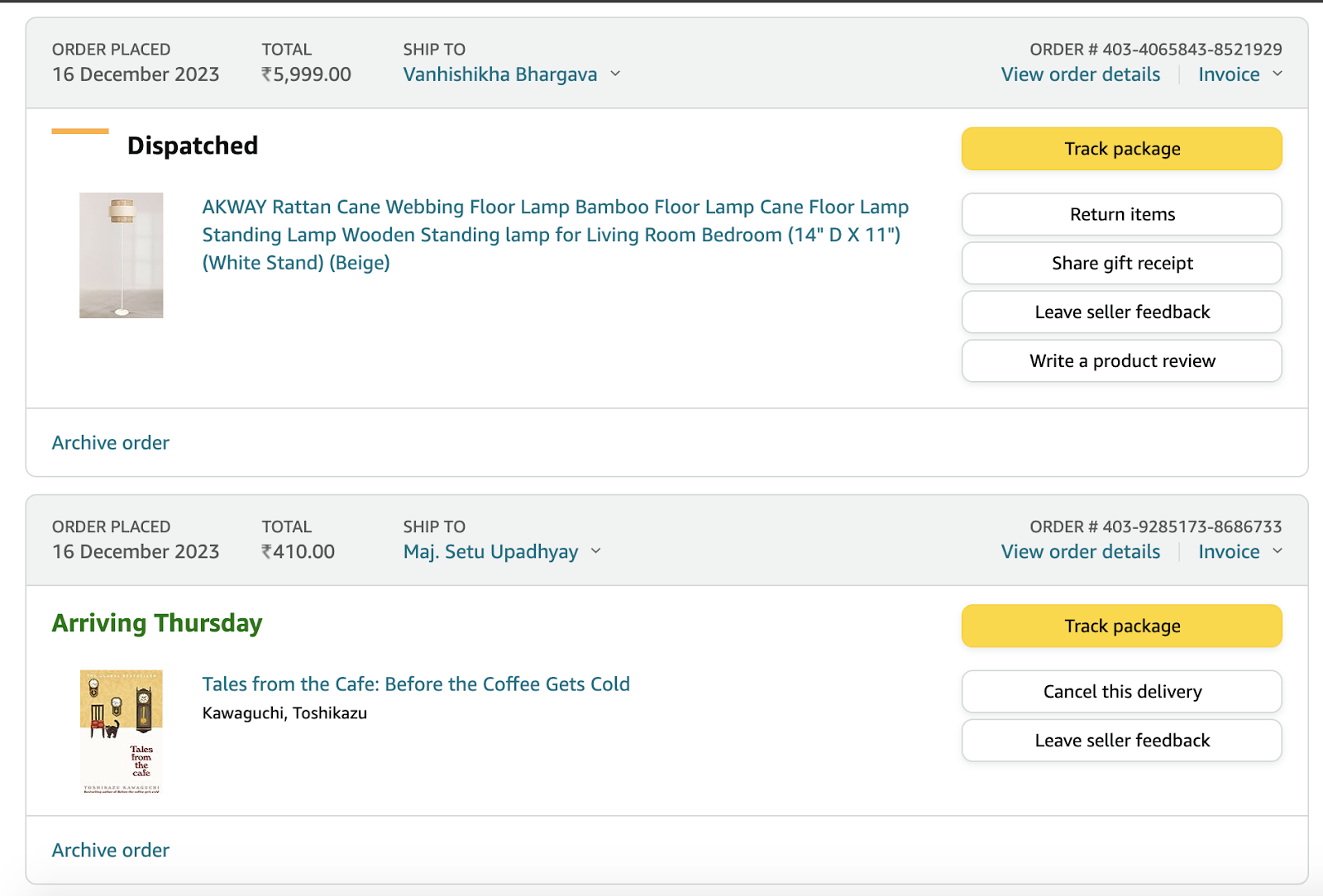
1. Keep it clean
A cluttered order history page can be overwhelming for customers and make it difficult for them to find the information they need.
To provide a clean and organized layout, avoid overcrowding the page with excessive details or unnecessary design elements. Use plenty of white space to create visual breathing room and make it easier for customers to view order history in Shopify.
Group orders together using clear headers or dividers, making it easy for customers to distinguish between different orders. Consider utilizing a grid or card-based layout to present each order as a separate entity, enhancing visual clarity.
By keeping the design clean and focused, you can streamline the user experience and ensure customers can easily navigate and understand their order history.
2. Include a product image
Visual elements play a crucial role in capturing customers’ attention and creating a memorable shopping experience. Including a product image for each order on the history page can serve as a visual reminder of past purchases. It not only adds visual interest but also helps customers recall their previous orders more quickly.
Ensure that the product images are clear, high-resolution, and properly sized. Displaying thumbnail images that accurately represent the purchased items will jog customers’ memories and evoke positive emotions associated with their past purchases. This visual connection may even motivate customers to reorder products they loved in the past.
3. Include key details of the product
While a product image is a crucial visual element, it should be accompanied by key details to provide a comprehensive overview of the order. Include essential information such as the product name and price. Displaying these key details alongside the product image allows customers to verify their past orders at a glance.
Consider incorporating a concise summary of the product, including relevant attributes or variations.
For example, if the customer purchased a shirt, mention the color and size they chose. Providing these essential details will aid customers in quickly finding their desired purchases and prevent confusion or misidentifications.
4. One-click access to the product page
To further enhance the user experience, enable one-click access to the original product page from the order history page. By allowing customers to easily revisit the product page, they can access detailed information, read reviews, and even initiate a reorder more efficiently.
Implement clickable links or buttons that direct customers to the corresponding product page. This seamless transition allows customers to interact with the product page as they would during their initial purchase, increasing the chances of making a repeat purchase.
5. Add a move to cart button for easy shopping
One of the primary goals of an order history page in Shopify is to encourage repeat purchases. To facilitate this, consider adding a “Move to Cart” button alongside each past order. This button allows customers to add previously purchased items back into their shopping cart with a single click.
The “Move to Cart” button eliminates the need for customers to search for and add each item individually, saving them time and effort.
6. Add a Contact Us button
Customers may have questions about past purchases, such as delivery updates, returns, or product inquiries.
Including a “Contact Us” button on the order history page design provides customers with an easy way to reach out to your customer support team for any inquiries related to their previous orders. This button can be a valuable addition, ensuring excellent customer service and enhancing overall customer satisfaction.
By including a prominent “Contact Us” button, you demonstrate your commitment to customer support and prompt issue resolution. This personal touch not only helps build trust with customers but also provides an opportunity to address any concerns and potentially turn a dissatisfied customer into a loyal one.
7. Customize and add all branding elements similar to the wishlist page
Consistency in branding is essential for maintaining a cohesive user experience across your e-commerce platform. Consider customizing the order history page with branding elements, similar to other pages like the wishlist or checkout.
Incorporate your brand colors, fonts, and logo to infuse visual identity onto the order history page. This familiarity reinforces brand recognition and strengthens the connection between customers and your business.
Additionally, consistent branding instills a sense of professionalism and trust, assuring customers that they are dealing with a reliable and established brand.
However, ensure that the design elements do not overpower the functionality and usability of the page. Strive for a balance between aesthetics and usability, allowing customers to navigate the order history page effortlessly while immersing them in a visually appealing representation of your brand.
8. Provide easy search and filter
In order to improve the user experience on your order history page, it is crucial to provide easy search and filter functionality. By implementing advanced search and filtering options, you enable customers to quickly and efficiently find specific orders or products from their purchase history.
The Flits Advanced Dashboard offers various search and filter options such as the number of orders, sorting by price, and defining specific time frames. These features allow customers to narrow down their order history based on their preferences, making it easier for them to identify and review past purchases.
By integrating similar search and filtering capabilities into your own order history page, you can enhance the usability and convenience for your customers. Enabling them to find the desired information efficiently contributes to a positive user experience and encourages repeat purchases.
9. Provide easy access to other pages of the site
To enhance overall navigation and user experience, it’s important to provide easy access to other pages of your website from the order history page. Including clear and visible navigation elements or links, such as a menu or a breadcrumb trail, allows customers to seamlessly explore different areas of your site without feeling disoriented.
Ensuring easy access to other pages not only improves user satisfaction but also encourages customers to explore additional products or sections of your website.
For example, you can include links to featured products, a customer account page, a wishlist, or a blog. This promotes engagement, increases the chances of cross-selling or up-selling, and encourages customers to spend more time on your website.
10. Ensure mobile responsiveness
With the increasing use of mobile devices for online shopping, it is crucial to ensure that your order history page is responsive and optimized for mobile screens. Mobile responsiveness refers to the ability of a website to adapt and display correctly on various devices, such as smartphones or tablets, providing an optimal user experience.
To ensure mobile responsiveness, it’s important to design the order history page with a mobile-first approach. This involves using responsive design techniques, such as employing fluid layouts, scalable images, and navigational elements that are easy to interact with on smaller screens.
A mobile-responsive order history page is vital for maintaining customer engagement and satisfaction. By providing a seamless and user-friendly experience across devices, you ensure that customers can access and navigate their order history effortlessly, regardless of the device they are using. Failing to optimize for mobile may result in frustration, increased bounce rates, and ultimately lost sales opportunities.
Bonus: Best practices for order history page
- Make it easy to access: Ensure that your order history page is easily accessible from your website’s main navigation or customer account page.
- Make it a part of an actively used page: Integrate the order history page into an actively used page such as the customer account page to encourage regular use.
- Make it easy to view all the order details: Allow customers to view comprehensive details of their past orders such as order status, tracking information, and product details easily.
Wrapping up
We’re sure you’ve learned a few new strategies to optimize the order history page on Shopify.
The idea is to choose a few of the above strategies and combine them with other functions on your customer account page. That way, you can leverage the benefits of all the features on your website.
You’ll need to install an efficient customer account page app such as Flits to get started.
Attached below is a customer testimonial regarding order history on the Shopify App store


